Search and install components in your editor.
Free to install.

Find the right component for your project.
- Search and filter
- Search names and descriptions. Use compact scrolling pills to filter by category, Apps, Blocks, Components, and Free or Pro access.
- Save to Favorites
- Tap the heart to save an item. Copy its install command, install it, or inspect its source straight from the listing.

See what you’re adding before you install.
- Try the live component
- Interact with the rendered component before installing. Visual previews are available without a license.
- Inspect the code
- Switch to Code to inspect source files. Pro source requires a license. Open the linked Figma component from the sidebar when available.

Add components directly to your project.
- Install from the extension
- Free items install without an account. Pro items use your saved license, or choose Get Pro to buy a bundle from the editor and install right away.
- Project and license settings
- See project status at a glance, manage your saved license, and choose a component library and style preset. Expand the settings guide for how each choice applies.
- Copy the CLI command
- Copy a command from the listing or detail view. Follow installation status in the sidebar and open the terminal to review the result.

Start with a complete Next.js app.
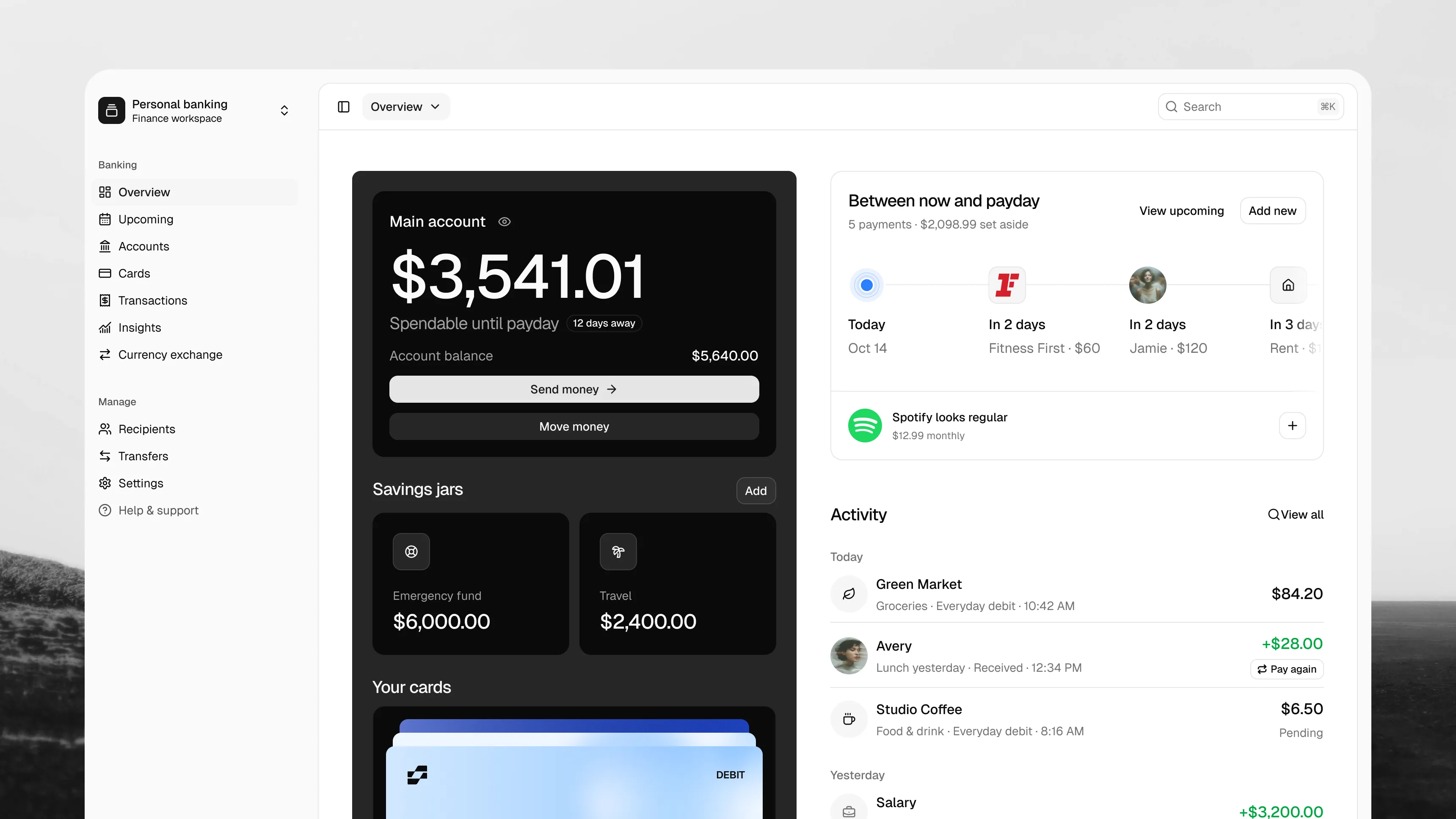
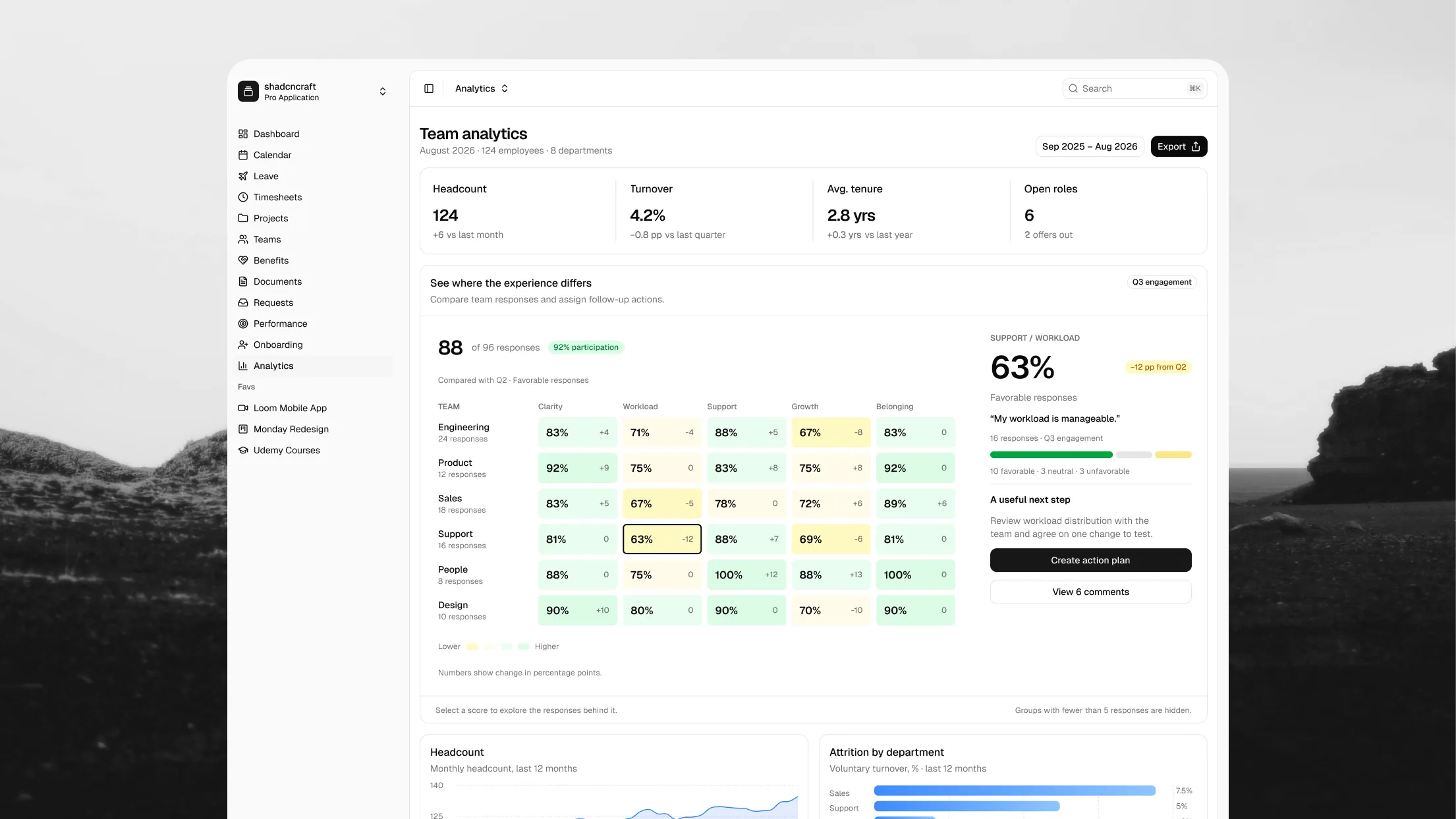
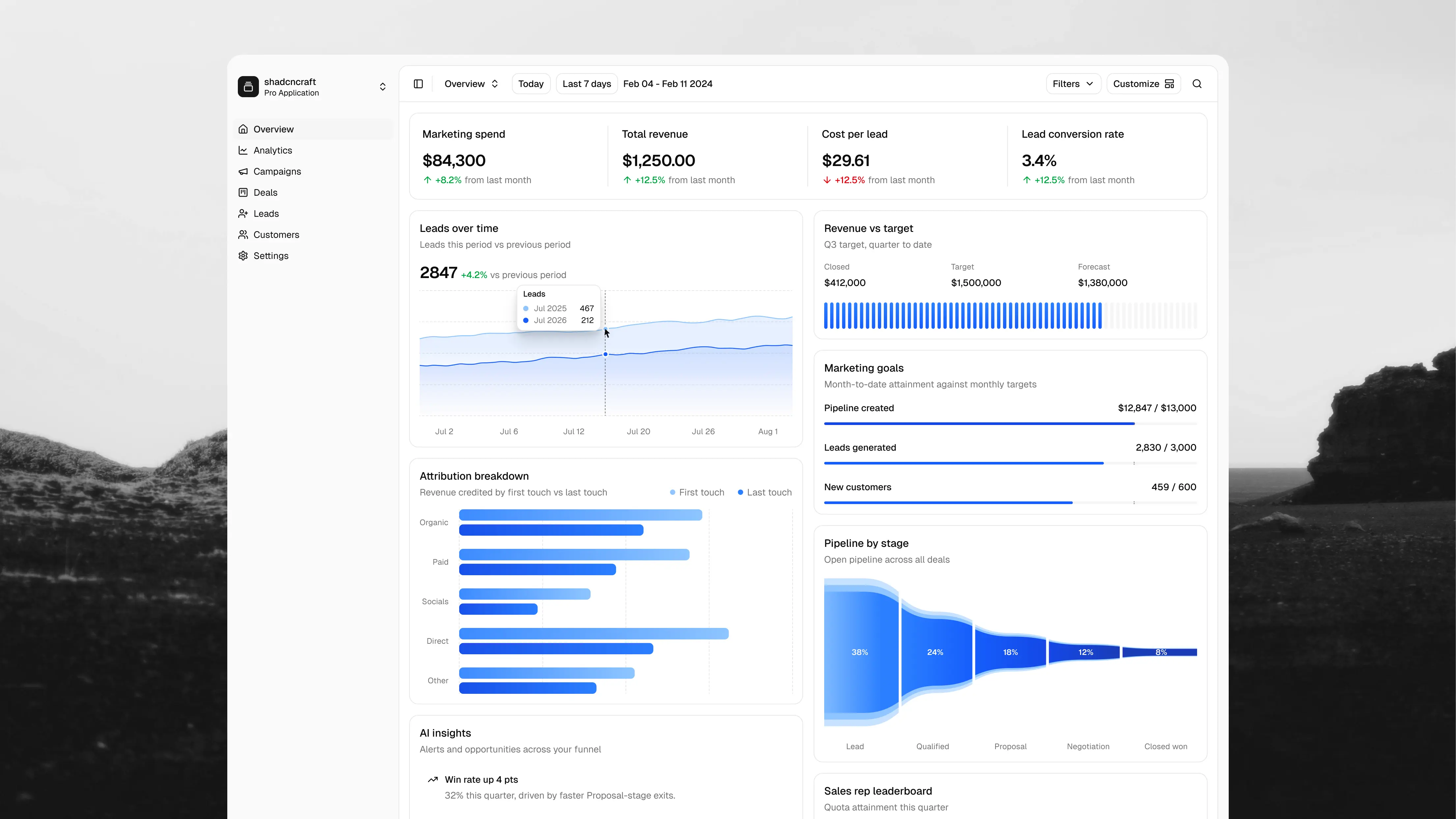
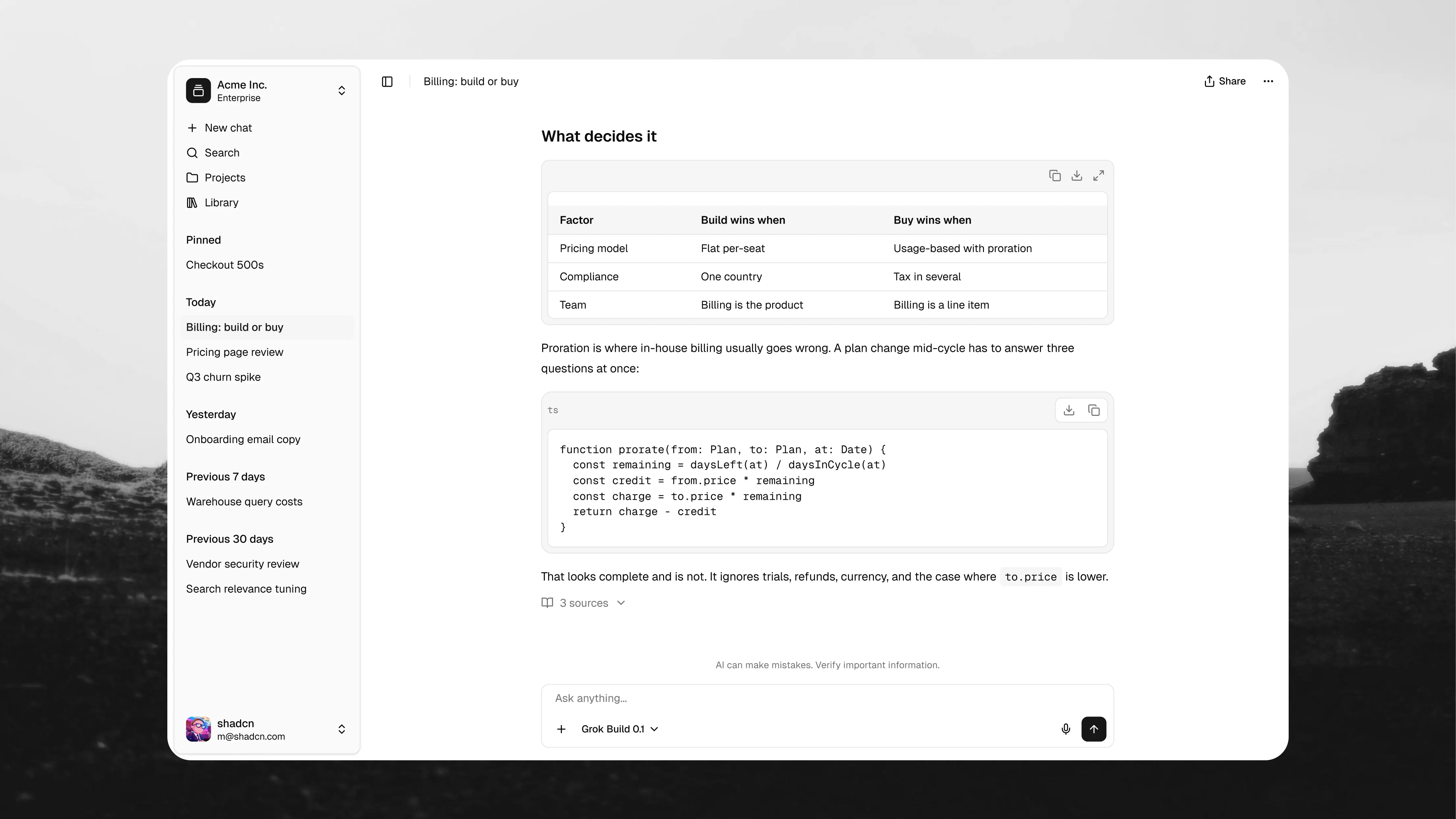

Free extension. One-time Pro bundles.
Use the extension with your bundle.
Get started for free. Buy a Pro React bundle from the editor, or add the license you already have, to install Pro components. Pro bundles are a one-time purchase. No subscription.
Included for everyone
- Browse the registry and save Favorites
- Preview blocks and components
- Install free items without a license key
Included with Pro React bundles
- Inspect Pro component source
- Install Pro blocks and components
- Buy from the editor, or use the license key from your bundle
Get shadcncraft for your editor.
Choose your editor to open the shadcncraft extension.




Or open the listing on the Visual Studio Marketplace for VS Code, or on Open VSX for Cursor, Antigravity, and Windsurf.
IDE extension FAQs
Open your editor’s Extensions panel, search for shadcncraft, check that the publisher is shadcncraft (ID shadcncraft.shadcncraft), and choose Install. Then open shadcncraft in the Activity Bar. Install it separately in each editor you use. The listings are on the Visual Studio Marketplace for VS Code and on Open VSX for Cursor, Antigravity, and Windsurf; the setup guide has the details.